These are conditional shopping plans based on documented features, not bundles we have assembled or tested. Match the complete setup to your equipment.
Finish a work session and clear the table without rebuilding the whole kit next time.
Keep what works
Start with your laptop, charger, existing mouse and any keyboard that already works. Use the built-in keyboard if you do not need to raise the laptop.
Required for the plan
A supported power route and a safe storage place for each item. If you raise the laptop out of reach, plan separate input devices. Add a hub only for connections your laptop is missing.
Optional upgrades
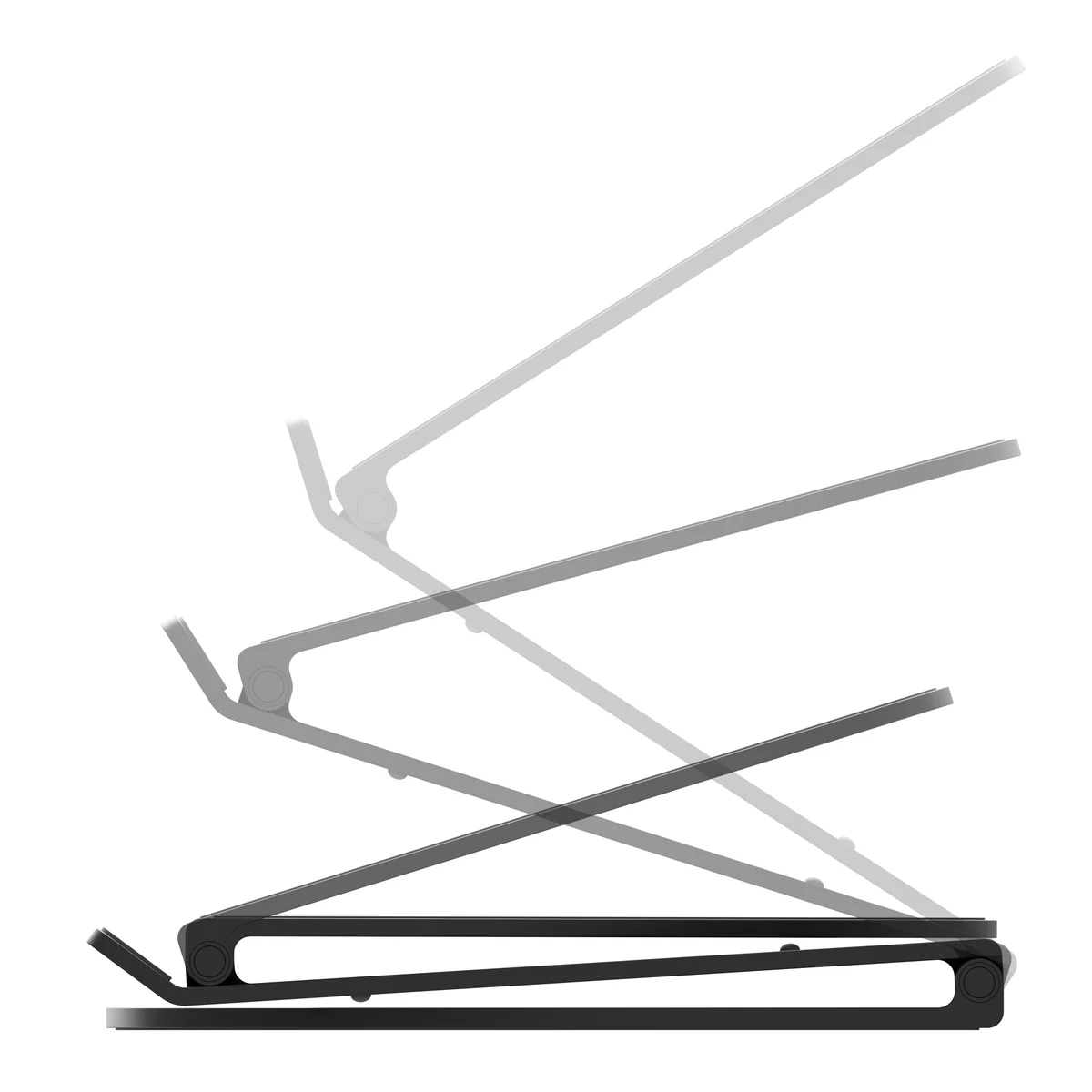
A folding stand, a smaller keyboard or reusable cable ties can help the routine. None is required just to work at a shared table.
Measure and connect
Measure the open working area and the storage opening. Pack the charger and cables as well as the hub; check that connectors are not bent under stored equipment.
Give the monitor, input devices and daily connections a permanent place, with a clear working area.
Keep what works
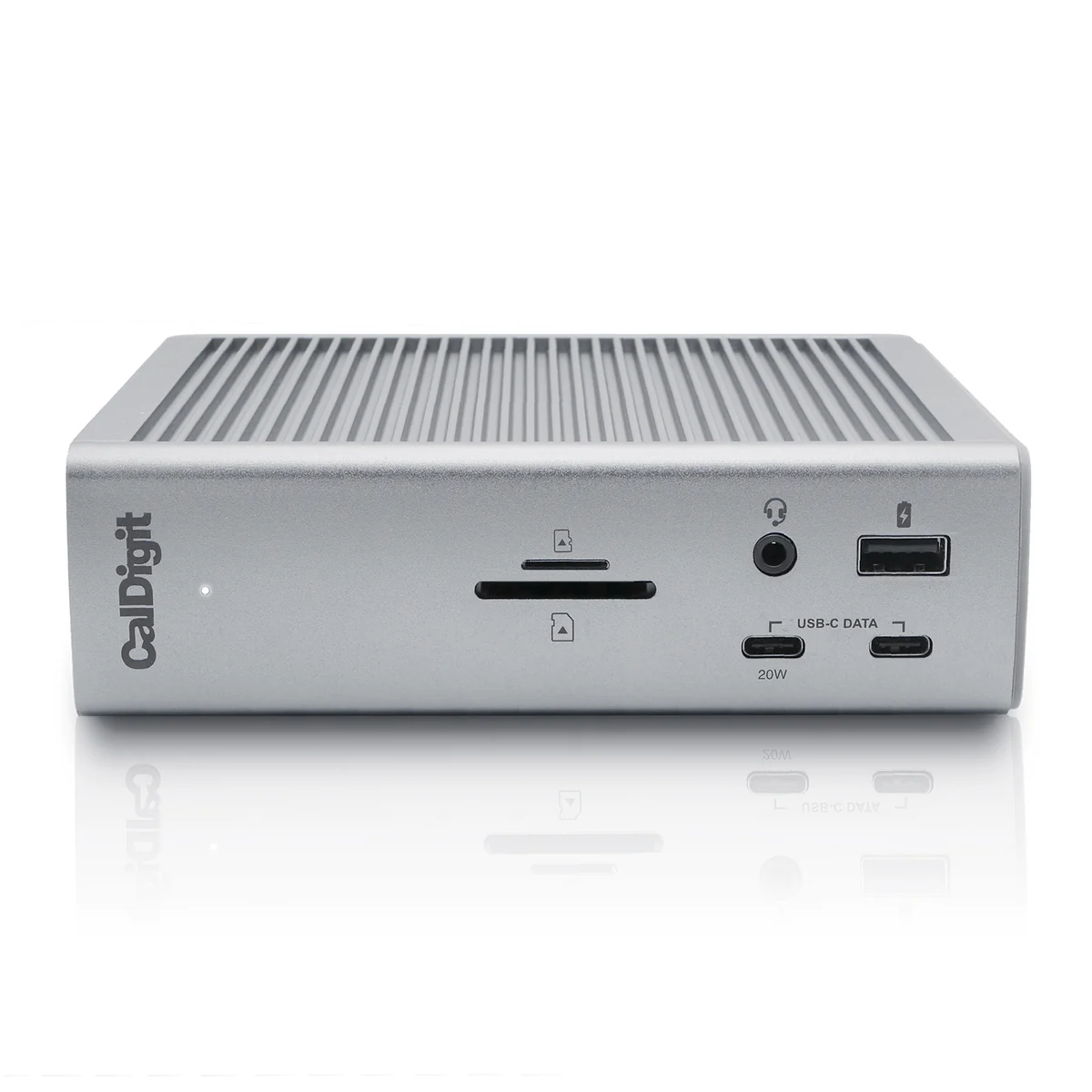
Keep your monitor, keyboard, mouse and direct cables if they already meet the task. A larger dock is optional when a small hub covers the complete connection list.
Required for the plan
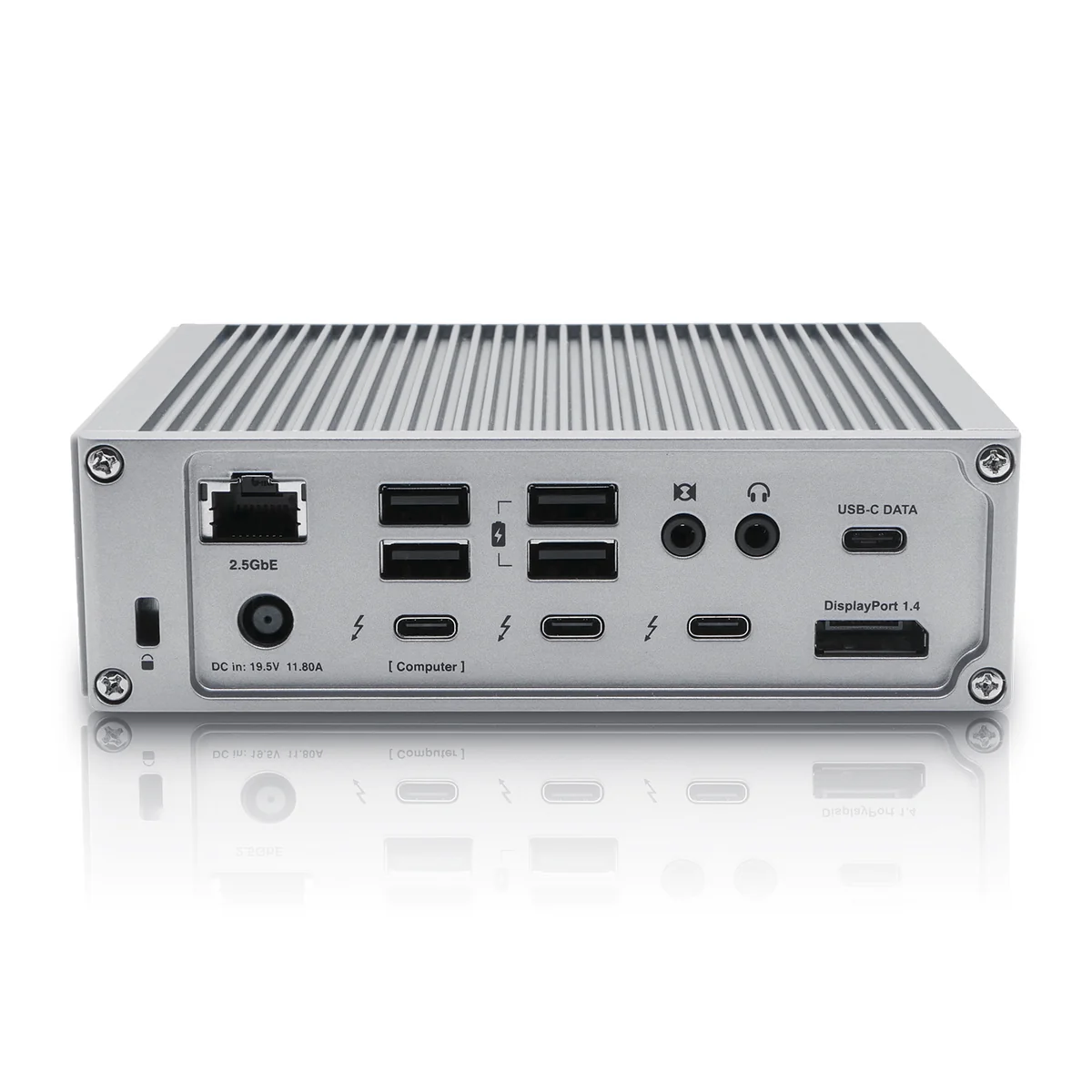
Map the actual laptop-to-display path, charging route and simultaneous accessories. A two-display arrangement must be supported by the exact computer and the chosen dock technology.
Optional upgrades
A monitor arm can remove a stand footprint if the furniture supports it. A dock can combine connections; a light bar can replace a lamp base when its mount fits.
Measure and connect
Measure rear clearance, arm travel and the desk underside. Include the dock supply, video adapters and cables in both the physical layout and the retailer basket.
Place the camera, microphone and light where the actual calling app can use them.
Keep what works
Try the built-in camera, current headset and existing room light first. Identify the specific missing function before adding equipment.
Required for the plan
A working camera and audio path, enough suitable ports and an app/OS that supports them. If you add an accessory, account for its mount, power and cable route together.
Optional upgrades
Choose a separate webcam for a specific framing/control need, a face light when room lighting is insufficient, or a wired headset when that connection suits your calls. Buying all three is unnecessary.
Measure and connect
Check the exact headset plug, camera position and available power. A monitor light bar lights the desk; it should not be assumed to replace a light aimed at the person on camera.
Need a separate USB-A webcam? Compare the listed field of view with your real camera position.
1080p/30 fps · USB-A · 58° listed diagonal view
Main drawback: It uses fixed focus; check framing at your intended position.
Fit check: Verify the complete clip arrangement, focus at the intended position and actual app framing. Published specifications are not our image-quality test.
Need light on your face? Check the host USB requirement and the complete mounting arrangement.
US 946-000001 · listed USB 3.0 host-port requirement
Main drawback: It needs suitable USB power and mounting space alongside the camera.
Fit check: Check current OS/USB requirements and the actual mounting and cable route. Optional software features are a separate check; no call-quality or comfort result has been measured here.