UD-MSTH2 is a relevant dual-HDMI shortlist when the host meets its DP Alt Mode and MST requirements, and the documented display modes suit both screens.
Skip it if: You need two extended Mac displays, the host lacks the required video features, or the listed 65 W charging does not meet your plan.
Choose a Thunderbolt dock by the exact host’s supported displays and the needed ports. It can be a suitable native path when both computer and dock support the complete arrangement.
Skip it if: You expect the dock alone to remove a base M1/M2 MacBook Air’s native one-display limit.
Choose the connection job before the product class
The words hub and dock do not establish a standard list of capabilities for every product on a retailer’s page. Begin with your laptop, displays, peripherals, charging arrangement, and whether the accessory stays on the desk. Then compare exact devices against that list.
A portable hub is attractive when it combines a small, defined set of connections you need away from the desk. A more permanent dock deserves investigation when the daily connection plan is broader or its explicitly supported capabilities are necessary. Neither label removes the need to check the host.
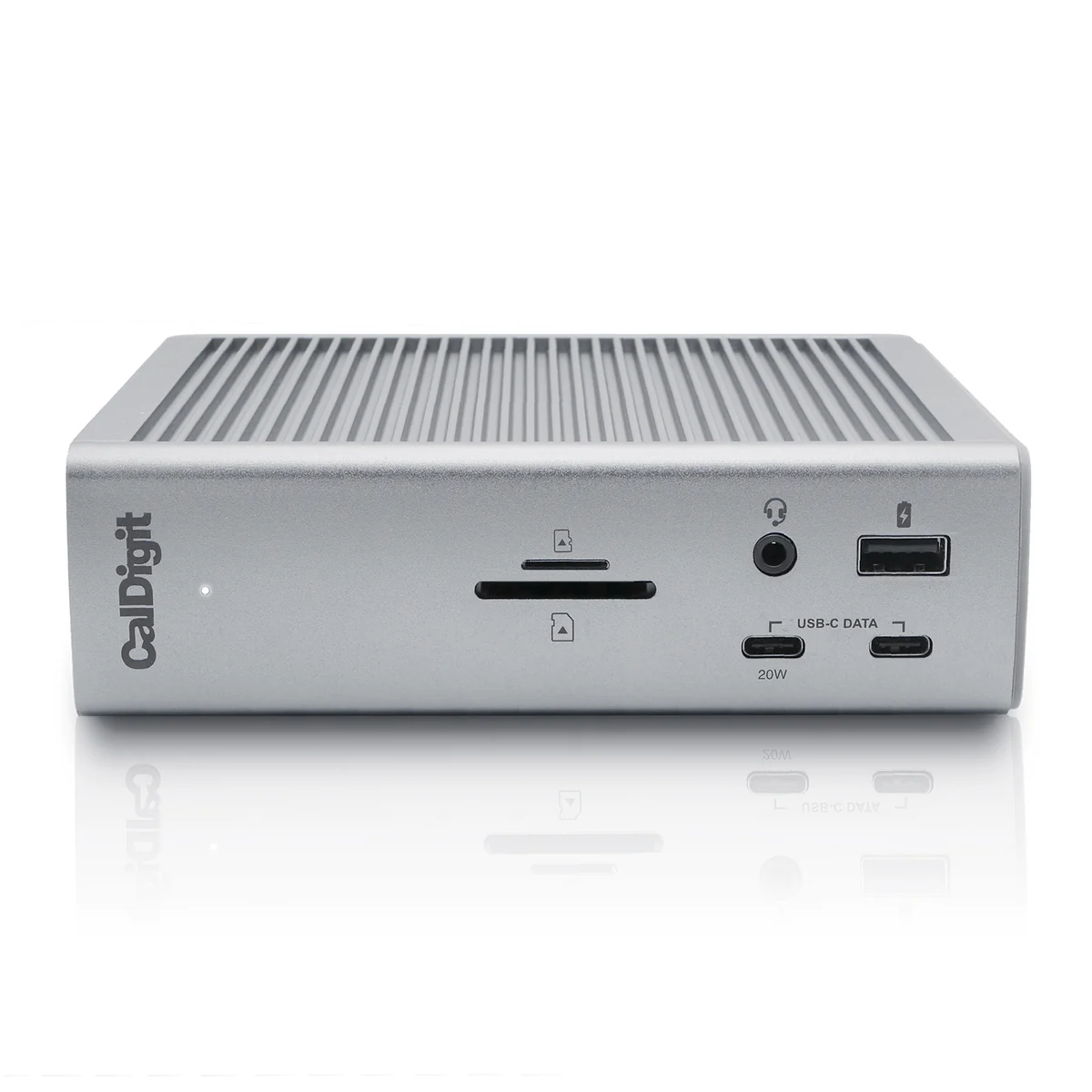
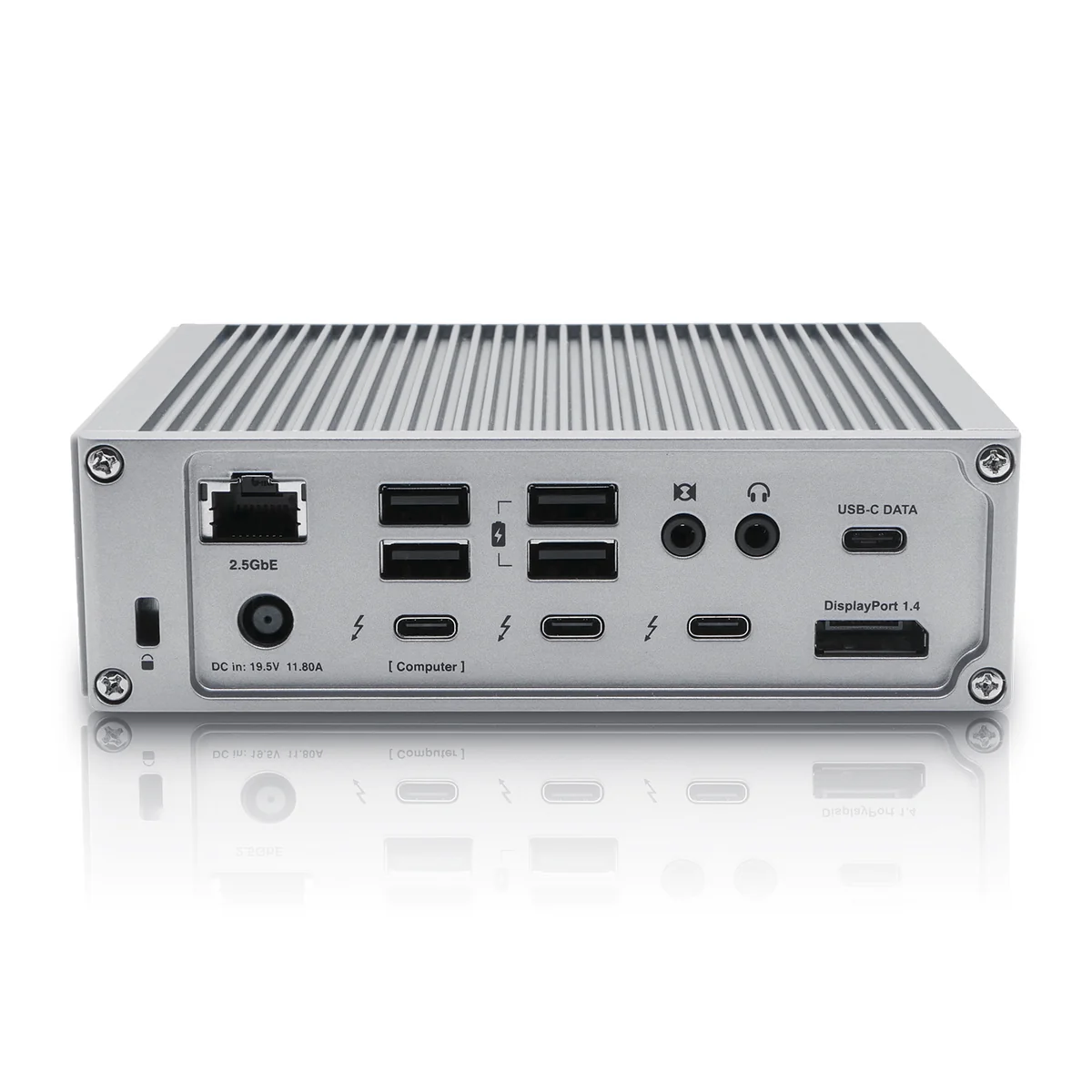
Manufacturer product views
Press images supplied by the manufacturers. Select a view to enlarge it.
The table describes purchase-planning tradeoffs, not universal specifications for every hub or dock.
What are you paying to simplify?
Arrangement
Useful when
Include in the comparison
Direct cables
The laptop already has suitable ports
Cable count, available sockets, and existing charger
Compact hub
You need a defined portable port set
Required charger, cables, port positions and host support
Desk dock
A supported permanent connection plan needs more capability
Power supply, total footprint, supported displays and extra cables
Three named desk-dock options to investigate
For a fixed desk with two screens, pick the display path first. Plugable UD-MSTH2 is an MST-based option for a supported Windows/ChromeOS host. UD-6950PDH uses DisplayLink and requires its software. CalDigit TS4 is a Thunderbolt option whose native display count depends on the computer. These are different compatibility routes, not interchangeable upgrades from a portable hub.
Read the dedicated dual-monitor comparison linked below before choosing one. It explains the Mac display-limit example, software tradeoff and cables that make the desktop arrangement work. If the portable hub already does the complete job, adding a larger dock is unnecessary.
Inventory simultaneous connections
Make two lists: the devices that stay connected all day and the ones used occasionally. A keyboard receiver and a single monitor are a different problem from wired networking, several external devices, and repeated card transfers. Count the actual simultaneous jobs.
Mark which connections are already available directly on the laptop. A hub that duplicates unused ports may add clutter, while one that combines recurring connections can reduce setup work. Do not compare only the number of sockets in a product photograph.
Why the two Anker models are examples, not universal docks
Anker’s A8355 and A8383 pages document different HDMI maxima and different port sets. A8383 adds Ethernet and SD/microSD connections; both list up to 85 W of laptop pass-through output. Use those distinctions to decide whether either belongs on your shortlist.
If the requirement is a demanding multi-display arrangement, start with devices whose documentation explicitly supports that arrangement with your host. An extra adapter does not turn an unlisted capability into a supported one.
Two routines that produce different baskets
A laptop that moves between a shared table and an office twice a week: compare the packed kit, including the charger and cables, rather than the hub alone. Consider which accessories must be unplugged and stored every time.
A laptop that normally stays at one desk: lay out the cable routes and connection points. A supported desk dock may simplify that routine, but a small hub with the right ports can also be enough. Buy a reduction in recurring work rather than the largest device class.
Price the supported basket
Compare current retailer totals only after deciding what each arrangement requires. Include any charger, video cable, adapter or mounting accessory that is genuinely necessary and supported. The lowest displayed accessory price is not the total cost of a working setup.
Before buying, write one sentence describing the problem the new connection arrangement solves. If the existing direct cables already meet every requirement and are easy to use, keeping them is a valid outcome. This guide does not claim performance testing or universal compatibility for the named hubs.
Evidence and limits
This is a specification-based buying guide. Product descriptions come from the sources below; the fit examples and decision rules are our editorial analysis. We have not measured durability, performance, or comfort in a product test.
As an Amazon Associate I earn from qualifying purchases. Amazon links open a model listing or product search. Confirm the variant, seller, price and availability there. Disclosure.
Anker 332 USB-C Hub (A8355)
A five-port hub with HDMI, USB data ports, and USB-C power input for a compatible laptop.
Check the fit: Your laptop must support the required USB-C functions. This model is not a 4K 60 Hz dock.
A DisplayLink dock for a supported computer that needs two office displays through a software-based graphics path.
Check the fit: Requires DisplayLink software. Plugable does not recommend this graphics path for gaming or video editing; protected-video playback has restrictions.