UD-MSTH2 is a relevant dual-HDMI shortlist when the host meets its DP Alt Mode and MST requirements, and the documented display modes suit both screens.
Skip it if: You need two extended Mac displays, the host lacks the required video features, or the listed 65 W charging does not meet your plan.
Choose a Thunderbolt dock by the exact host’s supported displays and the needed ports. It can be a suitable native path when both computer and dock support the complete arrangement.
Skip it if: You expect the dock alone to remove a base M1/M2 MacBook Air’s native one-display limit.
Write down the exact computer model, operating system and both monitors before comparing docks. Two connectors on the back of a dock do not establish two independently extended desktops. The computer’s display support and the dock’s graphics technology have to match the intended setup.
There are three useful paths in this shortlist: native DisplayPort Alt Mode with MST on a supported host, a Thunderbolt dock using the host’s native display capabilities, and DisplayLink USB graphics with software. Choose that path before comparing the remaining USB ports.
Manufacturer product views
Press images supplied by the manufacturers. Select a view to enlarge it.
This is a compatibility-led comparison from current manufacturer documentation. The table is not a performance ranking; a product in the wrong column for your computer is not a bargain at any price.
Three distinct dock arrangements to investigate
Product
Display route
Decisive check
Plugable UD-MSTH2
DP Alt Mode / MST; dual HDMI on a supported host
Windows/ChromeOS host capabilities; not two extended displays on macOS
Plugable UD-6950PDH
DisplayLink USB graphics; two displays
Supported OS, required software and acceptable workload limitations
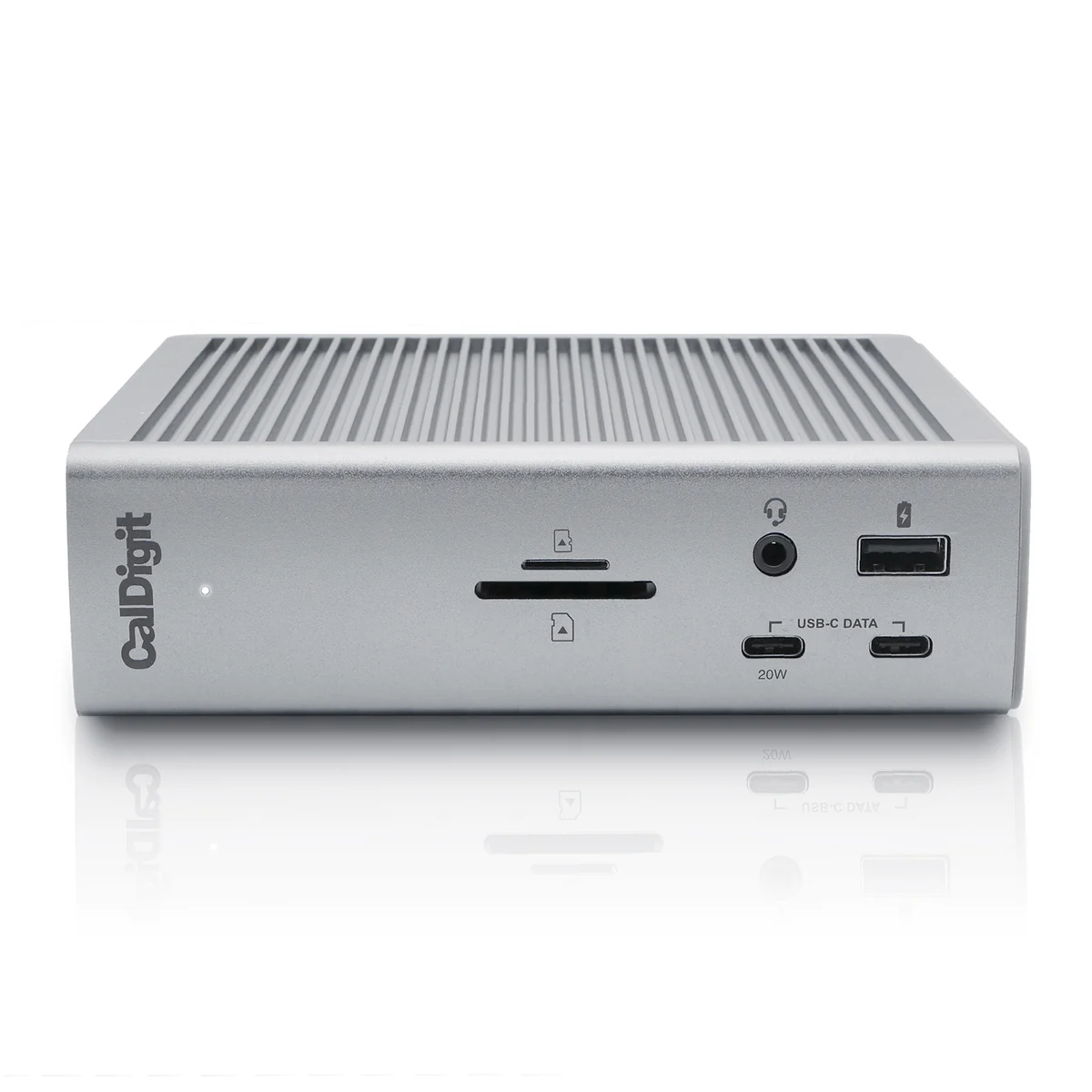
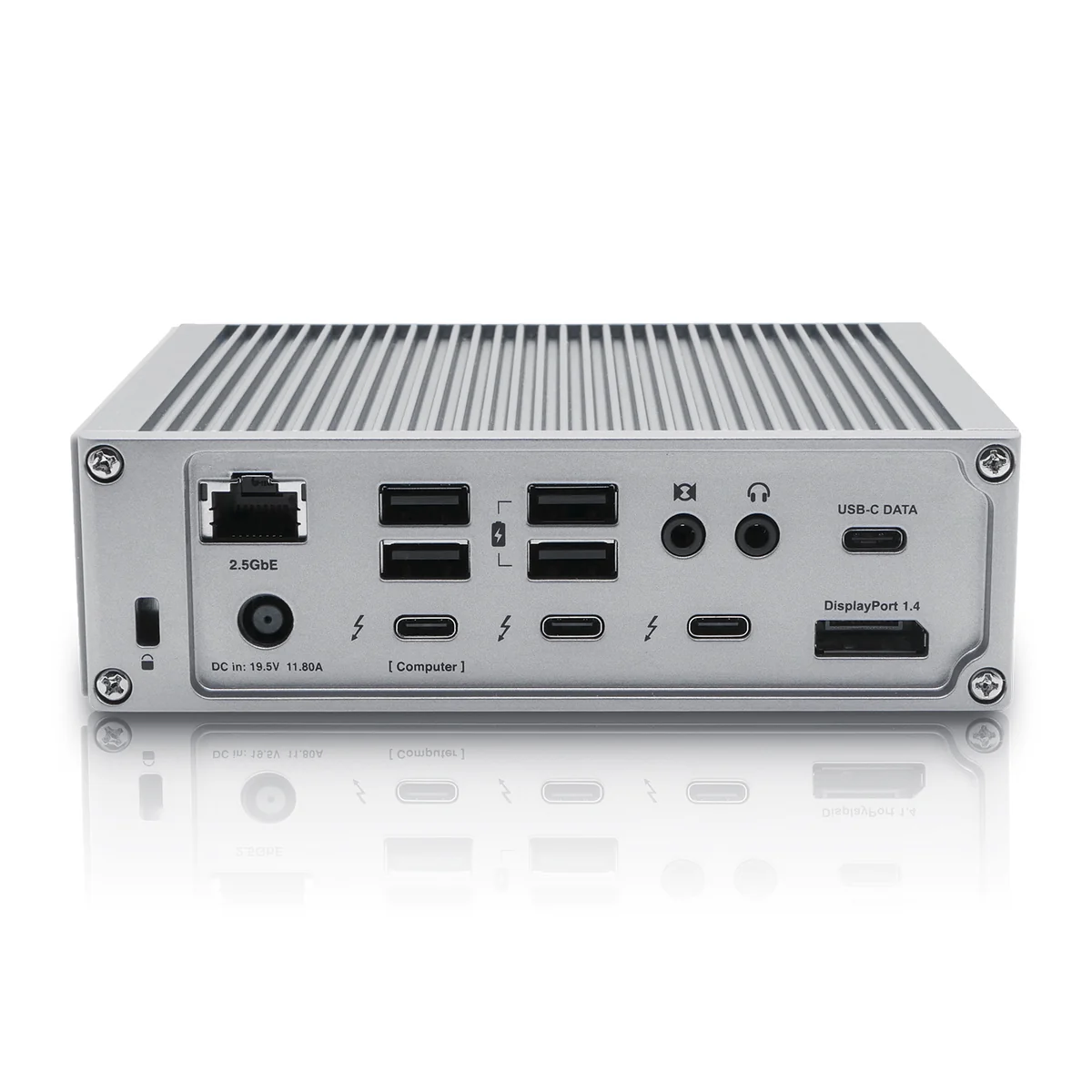
CalDigit TS4
Thunderbolt; native display support depends on the host
Exact host display count and the required monitor adapters
A concrete MacBook Air example
Apple’s specifications for MacBook Air M1 (2020) and M2 (2022) document one native external display. Buying a Thunderbolt dock does not by itself convert either of those exact computers into a two-native-display system. Do not generalize that rule to every computer with MacBook in the name.
For a two-display office requirement on a supported system with that native limitation, a DisplayLink product is a different route to investigate. It adds a software requirement rather than changing the host’s native graphics specification. If you cannot use that software, revise the display plan before ordering a dock.
Decide whether the software tradeoff suits the work
Plugable describes the UD-6950PDH DisplayLink route for office and browsing work, and does not recommend it for gaming or video editing. Its compatibility guidance also explains required DisplayLink software and macOS screen-capture permissions. On a managed computer, check that the required installation and permissions are allowed before paying for the hardware.
Protected-video playback is another buying criterion, not a small print surprise to discover after installation. Read Plugable’s current restrictions for the operating system and workload you intend. A desk used for spreadsheets all day has a different requirement from a desk used primarily for games or protected streaming video.
List the video cables as part of the purchase
Draw each complete path from the computer through the dock to a monitor input. Label the connector at every step. A dock with a DisplayPort socket does not make an existing HDMI cable plug into it. An adapter’s direction and stated support matter.
CalDigit’s TS4 guidance describes DisplayPort and spare Thunderbolt-port display paths, including appropriate adapters for HDMI. Confirm the complete arrangements with both manufacturers. Include any required adapters in the total cost and in the space behind the desk; the dock’s headline connector count does not do that planning for you.
Compare power after the display path passes
The published laptop-charging figures differ: 65 W for UD-MSTH2, up to 100 W for UD-6950PDH and up to 98 W for TS4. Compare the relevant output with the exact computer’s supported requirement. These limits do not predict a charging rate under your workload.
A larger charging number does not compensate for the wrong graphics technology. Work through a short acceptance list in order: exact host support, two intended display modes, required software, complete cables and suitable laptop power. Then compare the ports you will actually use. Save the list for setup so you evaluate the purchase against the job that justified it.
Evidence and limits
This is a specification-based buying guide. Product descriptions come from the sources below; the fit examples and decision rules are our editorial analysis. We have not measured durability, performance, or comfort in a product test.
As an Amazon Associate I earn from qualifying purchases. Amazon links open a model listing or product search. Confirm the variant, seller, price and availability there. Disclosure.
Plugable UD-MSTH2
An MST-based dual-HDMI dock for supported Windows and ChromeOS hosts.
Check the fit: Do not choose it for two extended Mac displays. Check the exact host’s DP/MST support and required modes.
A DisplayLink dock for a supported computer that needs two office displays through a software-based graphics path.
Check the fit: Requires DisplayLink software. Plugable does not recommend this graphics path for gaming or video editing; protected-video playback has restrictions.