Portable SSD: connect directly or through a USB-C hub?
Keep a working direct SSD connection, or compare Anker 332 and 555 when a hub solves a real port shortage. Check data rate, the data socket, accessory power and safe removal separately.
LLean Desk Guide editorial AI-assisted · Updated Nov 1, 2026 · Sources checked Nov 1, 2026
A portable SSD does not need a hub just because your desk has one. Keep a supported direct laptop connection when it leaves enough ports for your other equipment. Consider a hub when it removes a recurring port shortage or simplifies a setup you actually use.
For a documented 10 Gbps USB data requirement, Anker 555 A8383 is the relevant candidate in our two-hub comparison; Anker 332 A8355 lists 5 Gbps. Neither label verifies a particular SSD’s power needs or promises a file-copy speed. Resolve those checks before ordering.
Product views and details
Images are credited individually below. Select a view to enlarge it.
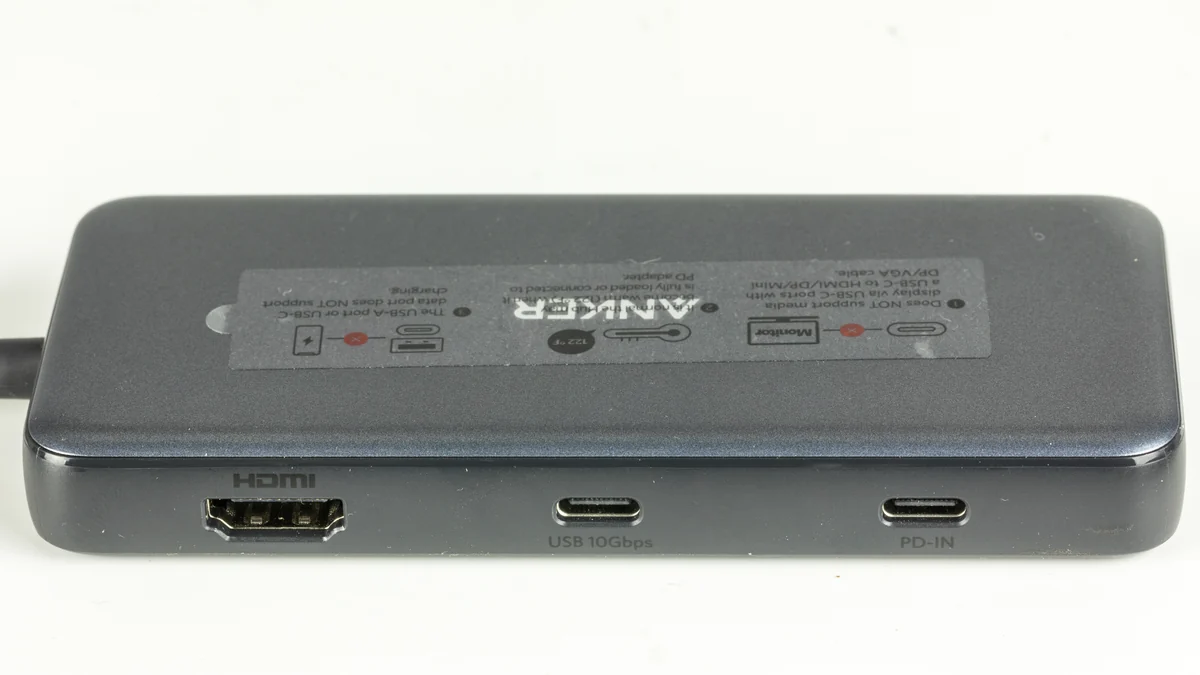
Anker 555 USB-C Hub (A8383, 8-in-1)A8383 photographed in May 2024: HDMI, USB-C data and PD-IN are separate connections. This is the PowerExpand model now sold as Anker 555; the pictured unit is not a new retail package.
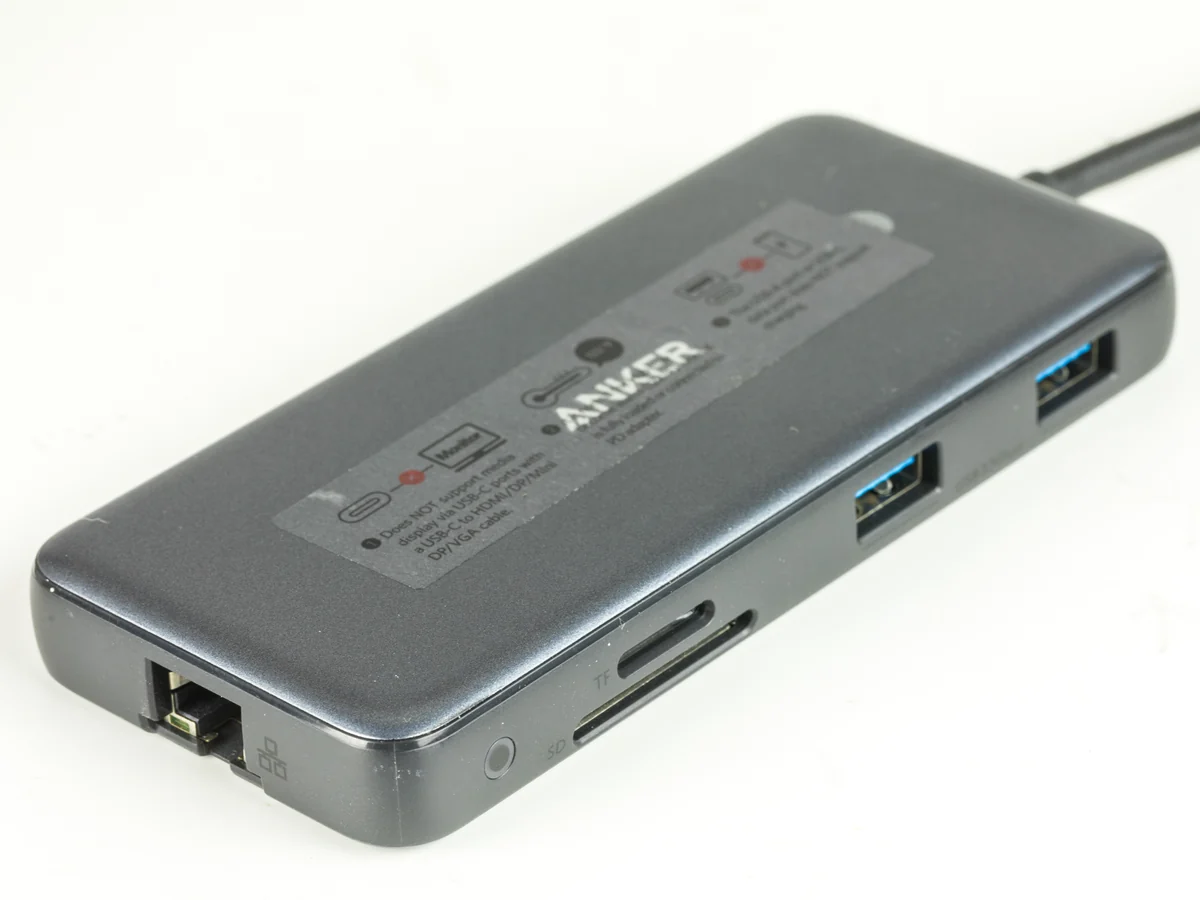
Anker 555 USB-C Hub (A8383, 8-in-1)The other side shows Ethernet, SD/microSD and USB-A connections. The photograph identifies the sockets, not measured transfer speeds or simultaneous-use performance.
Check its USB data capability, not just the shape of the socket.
2 · HUB, IF NEEDEDUse a data socket
A8355 lists 5 Gbps; A8383 lists 10 Gbps. PD-IN is a separate charger input.
3 · DRIVE AND CABLEKeep the supported drive lead
Verify the drive’s interface, cable and accessory-power needs.
Original planning diagram. These are published data-rate ceilings, not measured SSD speeds or a tested hub/drive pairing. Keep a supported direct connection when it already solves the job.
Compare the complete data path
Write down the laptop port, drive cable and intended hub data port. USB-IF treats data capability separately from connector shape. A USB-C plug fitting the socket does not establish the data rate of the complete connection.
Samsung’s T7 Shield manual is a useful example: it specifies a 10 Gbps interface for optimal performance, says lower interfaces can reduce performance, and includes both USB-C-to-C and USB-C-to-A data cables. It also identifies host UASP support as a performance factor. This illustrates why the drive’s own instructions matter; it is not a tested T7 Shield/Anker pairing.
Choose the connection before choosing another accessory
Your situation
Starting route
Main check
A direct connection works and leaves enough ports
Keep the drive and its supported cable
No hub purchase is needed
You need extra ports; a listed 5 Gbps ceiling is enough
Compare A8355 only after checking the rest of the plan
It does not provide a 10 Gbps data path
Your required data path is listed at 10 Gbps
Compare A8383, or keep a suitable direct port
Host, cable, drive and accessory power remain separate checks
Disconnects or a missing power specification are unresolved
Investigate the exact drive and connection first
A higher rate or laptop-charging headline is not a diagnosis
Use a data socket, not the PD input
A8355 and A8383 have different jobs assigned to their sockets. The USB-C PD input is for a suitable charging supply; it is not the SSD data connection. Use a documented USB data port and the drive’s supported data cable.
A8383 lists 10 Gbps USB-C data and USB-A data connections. A8355 lists 5 Gbps data connections. Their laptop pass-through charging specification describes the laptop-power route, not an accessory-power allowance for your drive. Do not infer that a 100 W input can supply a 100 W USB accessory.
Check drive power without guessing from the laptop charger
A8355’s published accessory figures distinguish its two USB-A ports, which share a total 4.5 W, from its USB-C data output, listed at 7.5 W. Compare the exact drive’s requirements and everything else using the relevant ports; a per-route figure is not permission to add every port’s headline together.
A8383’s page says its data ports are not for charging use, without establishing a universal SSD power guarantee. That wording should not be turned into either “all bus-powered drives work” or “data ports supply no operating power.” If the drive and hub documents do not establish the arrangement, keep a supported direct route or obtain model-specific clarification before buying.
Make one useful comparison with equipment you own
If you already have the drive and hub, compare a nonessential sample copy over the existing supported direct route and intended hub route. Keep the same source files and destination, and note the cable, selected socket and other active peripherals. A different file mix or source disk can change a copy result.
This is a suggested owner check, not a benchmark we performed. Do not publish a measured result unless you actually recorded it. If the hub arrangement has an unresolved reliability problem, do not buy a faster cable or replacement SSD simply because the rate labels look different.
Include the small-desk routine
Reserve space for the drive and cable exits rather than leaving the SSD hanging from a short lead. Check the drive’s supplied cable before adding a replacement to the basket. Keep any laptop charger needed by the chosen arrangement; an accessory data connection and laptop charging are separate jobs.
Before disconnecting the drive, use the operating system’s safe-removal process. Samsung explicitly requires eject/unmount/safely remove for T7 Shield. If a USB sharing switch moves the drive between computers, switching also disconnects it from the previous host; do not switch during a transfer.
Choose the smallest complete purchase
Use the hub checklist to compare the data requirement alongside displays, cards, network and laptop charging. A feature match is a shortlist, not a drive-compatibility test. Keep working equipment, buy a hub only for a defined missing connection, and leave the drive model unchanged unless a separate storage need justifies replacing it.
Evidence and limits
This is a specification-based buying guide. Product descriptions come from the sources below; the fit examples and decision rules are our editorial analysis. We have not measured durability, performance, or comfort in a product test.
Anker 332 A8355 port specifications ↗5 Gbps data connections; USB-A ports share total 4.5 W and USB-C data output is listed at 7.5 W; PD input and laptop output are separate.
Anker 555 A8383 data ports and charging notes ↗10 Gbps USB-C/USB-A data ports, separate PD input/laptop charging and exclusion of charging use on the data ports. Does not verify a named SSD combination.
Samsung Portable SSD T7 Shield English manual, version 1.1 ↗Manufacturer-hosted English manual: supplied USB-C-to-A and USB-C-to-C data leads, 10 Gbps interface and UASP performance factors, lower-interface limits and safe removal. Used as an example, not an SSD recommendation or tested hub pairing.
USB-IF data performance language guidelines ↗Separate data performance from connector/physical characteristics and identify explicit signaling rates rather than relying on a USB-C connector label.
Plugable USB3-SWITCH2 storage guidance ↗Current embedded USB sharing guidance explains one active host, disconnecting shared devices when switching and safely removing storage before switching.
As an Amazon Associate I earn from qualifying purchases. Amazon links open a model listing or product search. Confirm the variant, seller, price and availability there. Disclosure.
Anker 555 USB-C Hub (A8383, 8-in-1)
An eight-in-one hub to compare when you need Ethernet, card readers, or the documented higher display mode.
Check the fit: For 4K60 HDMI, Anker specifies a DP 1.4 host path. Its USB-C data socket does not output video. Check the exact laptop, monitor and cables.